Understanding Grades vs. Grading vs. Grade Book Structure
In Canvas, student scores are handled in a few different places, depending the task at hand. On the Assignments page of the course, instructors can create assignments as well as manage all of the other graded activities to determine the structure of the course final grade. Grading, which is the assigning of points to student submissions, is most often handled in the Speedgrader tool that is available from within each activity. The Grades page of the course is the 'spreadsheet' that shows all the scores for each student and shows the calculation of the current course grade for each student. The Grading Scheme, or range of letter grades, is defined in the Settings page of the course.
The final course grades can be imported into the official university grade submission in PeopleSoft. Learn more.
Grade Book Structure
How you will calculate the students' overall course grade depends on whether you're using percentages of weighted categories or simple total points. In all cases, the set up is handled on the Assignments page of the course.
Weighted Categories
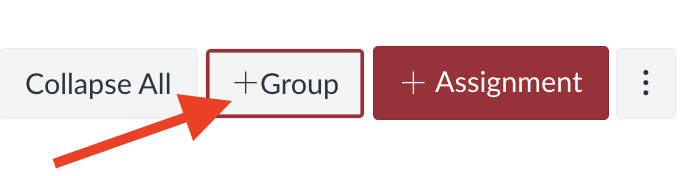
In this approach, assignments are placed into categories (called groups in Canvas). For example, categories could be "Participation," "Exams", "Homework", or any other organizing structure you plan to use. On the Assignments page, click "+ Group" to create the categories.
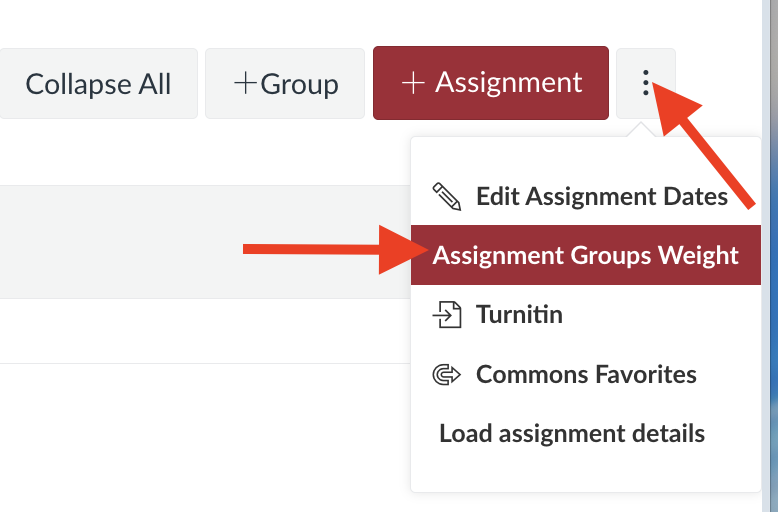
Once all the categories have been created, it's time to assign weights to them that add up to 100%. Click the 'three-dot' menu in the upper right and select "Assignment Groups Weight".
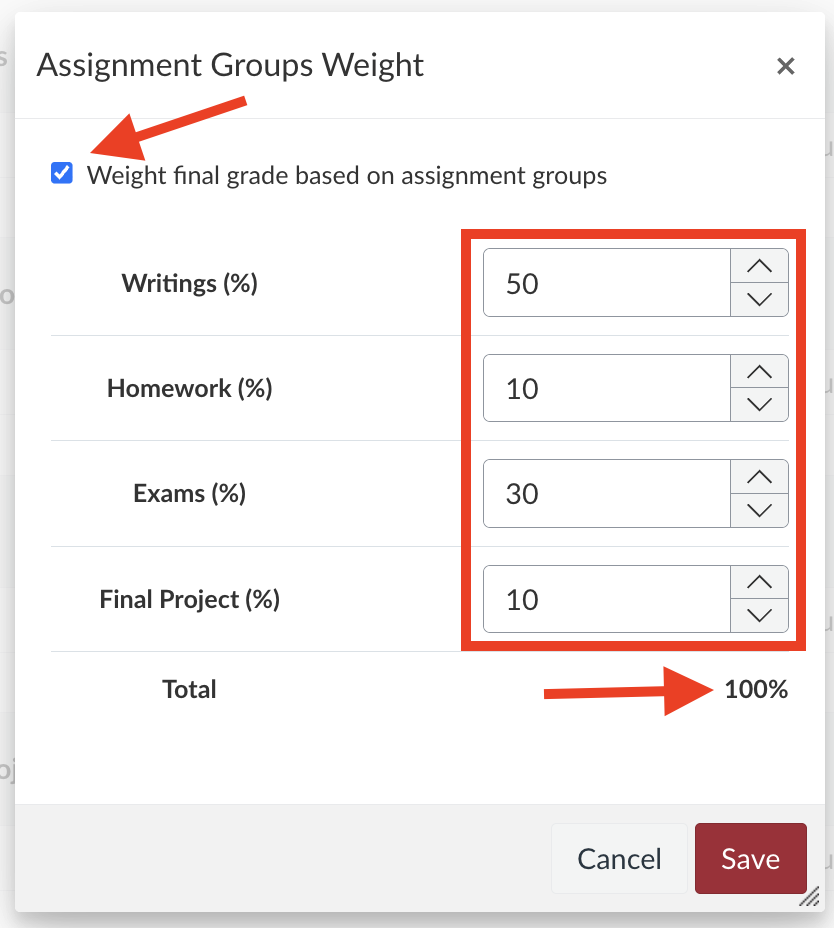
The final step in the configuration is to enter the weight that each group will have to the final course grade. Check the box to "Weight final grade based on assignment groups" and then fill in the percentages. The running total should be no less than 100%. If it's over 100%, then the overage amount functions as extra credit. This may or may not be desirable.
Following this setup, the instructor will place all graded Canvas activities into one of the assignment groups. This makes that activity contribute to the total for that group.
Simple Total Points
In this approach, the instructor does not create any additional groups. Each graded Canvas activity will be placed into the solitary default group for the course. This "group" is a holding space and the total points are worth 100% of the course grade and cannot be deleted.
Grading Schemes Correlate Percentages to Letters
A grading scheme correlates the final percentage of a student's grade into a traditional letter grade. Each Canvas course comes with a standard scheme that is enabled by default. Instructors are able to create a customized scheme from the Settings page of the course. Note: A+ is not a grade that can be assigned in PeopleSoft, so it it not recommended to create that letter grade in Canvas.
How do I view and manage grading schemes in a course?
Grading
Canvas has two ways to input scores for student submissions. The first, and most common, is to use Speedgrader. The second method is type scores directly into the 'spreadsheet' cells of the Grades page.
Speedgrader is the Canvas tool that instructors use to assess student submissions and provide a score, along with any comments. Speedgrader displays the student submission content and allows for the input of a grade either as a simple entry of points or via a clickable rubric (that the instructor creates beforehand).
Instructors can also input student scores by opening the Grades page in the course. On that page, each graded activity is represented by a column and each student has a cell in the column. Simply click the cell and input the score. Note that scores can be changed here as well. Read on for more information about the Grades page.
Grades
The Grades page in a Canvas course is where the instructor gets a birds-eye view of the scores the students have been awarded. It is also where various total calculations are visible, such as the current scores for individual categories and the current total course grade for each student.
Things to know about the Grades page:
- The columns can be reordered by dragging and dropping. So, the total column can moved to the front of the order if desired.
- ALL activities on the Assignments page have a corresponding column on the Grades page. If there is a column on the Grades page that you don't understand or aren't using in the current course, it is there because it is on the Assignments page. Deleting an activity from Assignments also removes its column from Grades.
- Click the 'three-dot' menu for a column to sort the column, to message students based on score, to post/hide grades, and more.
- The columns view can be limited just to published assignments.
- Click in cell to edit the score; press <return> or <tab> on the keyboard to save the entry and move to the next student.
- After clicking in a cell, click the secondary arrow icon to reveal additional options. Choose "Open in Speedgrader" to go directly to the student's submission for further review.
- Use the two filter menus above the spreadsheet to limit the view to a single student or to limit the columns to a single activity.
- Click the "gear" icon to reveal additional grading settings, such as:
- Configure automatic deductions for late submissions
- Show/hide unpublished activities
- Show/hide totals columns
- Configure course policy on grade release (automatic or manual)
Submitting Final Grades in PeopleSoft
Things to know beforehand:
- All grading must be complete before attempting the import from PeopleSoft.
- The "Total Grade" column shown on the Grades page in Canvas is not the actual column that is imported to PeopleSoft. Instead, PeopleSoft imports a hidden column called "Final Grade". The Final Grade column calculation interprets ungraded items as 0's. This means it could have a different letter grade from what is shown in the Total Grade column.
- GRADE EVERYTHING FIRST.
Updated: December 28, 2025