
Submitting Your Financial Aid Documents— Made Simple!
When applying for financial aid and scholarships at Stan State, the Financial Aid & Scholarship Office may ask you to send in extra paperwork. Here’s how you can submit what’s needed quickly, safely and online.
Important: Keep your information secure! Do NOT email documents!
Exchanging sensitive financial information via email is not secure. The Financial Aid & Scholarship Office only accepts documents through secure online tools.
FA Online Student Forms Portal
Paperless Financial Aid tasks
The Financial Aid (FA) Online Student Forms Portal is a paperless system where you can complete, submit and track financial aid documents online.
When the Financial Aid & Scholarship Office requests a document or task:
- You will receive an email to your Stan State student email
- A task will be added to your myStanState 'To-do list'
- You can log in to the portal to view and complete the task
You can access the portal through the link in your email or on your myStanState 'To-do list' to enter the system. This system allows you to safely submit documents and manage financial aid requirements in one place, making the process faster and completely paperless.
Navigate to the FA Online Forms Portal or use the shortcut below.
Forms & Requests
The Concurrent Enrollment Form is for Stanislaus State students pursuing a degree who plan to take courses at another college or through University extension during the same term.
To be eligible, courses must be approved in advance by your major adviser and meet Stanislaus State’s transfer credit policies.
Students must also be enrolled in all classes by the term’s census date.
Please note that approval for concurrent enrollment does not guarantee transfer credit. Transfer credit is evaluated after official transcripts are received.
If this applies to you and would like to request concurrent enrollment, use the Concurrent Enrollment Form. You can also access it via the shortcut in the next section.

The Financial Aid Course Exception Form is for Stanislaus State students who need to have a course reviewed to determine financial aid eligibility.
Financial aid eligibility is based on your academic program and classification. To be eligible for federal financial aid, courses must meet program requirements as outlined in the University Academic Catalog.
- Courses must be required for your degree or program completion.
- Courses that are not required for your program are not eligible for federal financial aid.
- Undergraduate-level or replacement courses must be listed in the Academic Catalog and/or approved by the instructor as meeting the appropriate academic standards for your program.
- You must be enrolled in all units by the term census date.

Submitting this form does not guarantee approval. Each request is reviewed based on program requirements and federal financial aid regulations.
If you need a course reviewed for financial aid eligibility, use the Course Exception Form.
The Scholarship Enrollment Verification Form is used to request official verification of your enrollment for scholarship purposes only.
Before submitting, please note:
- Enrollment verification is sent directly to your scholarship donor using the contact information you provide.
- Requests are term-specific, and a separate form is required for each scholarship.
- Accurate donor information is required to avoid processing delays.
- By submitting this form, you authorize the Financial Aid & Scholarship Office to release your enrollment information for the selected term to your scholarship donor.
To have your enrollment verified for a scholarship, log into the FA Online Student Forms Portal, and select “Manage Requests” at the top right to access the form.
Financial Aid Online Form FAQs
Financial Aid (FA) Online Forms is our new student portal that allows students (and parents) to electronically sign and upload documents! This means that you can submit your documents securely without having to come into the office!
When creating your account, you’ll be using your Stan State email. You will want to make sure your information matches exactly what is on your financial aid application.
- Log into myStanState
- Select the Financial Aid To Do List Item
- Use the FA Online Forms link
- Select the “Create Account” link
- Enter/confirm your student information
Once you have successfully created your account, any required tasks you need to complete will become available. Your tasks will be linked with your myStanState portal and you’ll be able to take care of tasks electronically!
NOTE: If you completed the California Dream Act Application, you will want to enter your California Dream ID in lieu of a social security number when creating your account. This ID# can be found on your CA Student Aid Report on Webgrants
Here are a couple of items that your parent will need to keep in mind when creating their account:
- When the student identifies which parent, they are requesting a signature from, that is the only parent that will be able to sign the document, unless the student goes back into the task and edits the selected parent.
- The parent will need to notify the student if the information on the document is inaccurate and needs to be changed. The student will need to make this change and re-request the signature.
Yes, you absolutely can! You will be directed to create a PIN and that will be your electronic signature going forward. You can also click “Opt out of E-Sign” which will allow you to download the document, print it, sign it with your wet signature, and upload it back into your task
Yes, once you have e-signed your document, you will be brought back to the main page of your tasks and you will see a section that indicates a parent signature is required, as well as a button that says “Request”.
- Select the “Request” button and a pop-up showing the parent(s) listed on the financial aid application will appear.
- Select the parent you would like to electronically sign the document (NOTE: If you have two parents listed on your financial aid application, only the parent you choose will have the ability to sign the document.)
- The parent will receive an email notification letting them know that a document needs their signature. They will need to create an account if they have not already.
- The parent can review and electronically sign the document through their account.
IMPORTANT: The parent will need to notify the student if the information on the document is inaccurate and needs to be changed. The student will need to make this change and re-request the signature.
If you submitted a FASFA: At least one parent must have a valid SSN for both the parent and student to e-sign. If the parent does not have a valid SSN, they will not be able to electronically sign, neither will the student. The student will instead click “Opt out of E-sign” which will allow them to download and print the document so that both the student and parent can provide wet signatures. Once the document has been signed, the student will upload it.
If you submitted a CADAA: If the parent does not have a valid SSN, they can provide all zeros for their SSN and create an account, as long as they can provide all of the required information. The information must match to the information submitted on the CADAA application.
If the parent has more than one child attending Stan State, they should create a separate username for each child. It is highly encouraged that they use a different email for each child as well.
If the parent uses the same username/email for all of their children attending Stan State and they forget their login information, the system will not be able to tell which account they are trying to recover. This will cause a delay in electronically signing documents.
Yes. This system is functional with mobile devices, however, a desktop or laptop computer is highly recommended.
You may be contacted various different ways:
- Via text Message: Students will have the opportunity to sign up for text notifications upon providing their cell phone information when creating their account.
- Email Message: Students will receive an email message to their Stan State email account.
- To-Do List: Students will view items on their myStanState student center.
- Error Code 1010: This error indicates that you are entering information into the confirmation section (First Name, Last Name, DOB, & SSN) that does not match what is on the FAFSA or Dream Application. Students who have NOT completed a FAFSA or Dream Application will also receive this message.
- Error Code 1005: You are unable to create an account in FA Online Forms is there is a social security administration mismatch on your FAFSA application.
The Tax Return Transcript is free of charge and must be requested by the tax filer directly from the IRS. To request your transcript, follow the instructions below.
Online Request
- You can print a processed Federal Tax Transcript online by visiting the IRS “Get Transcript” webpage.
- To use Get Transcript online, you need your Social Security number (SSN) or Individual Tax Identification Number (ITIN), date of birth, tax filing status, and address from your latest tax return.
- Select an option to request the transcript:
- Get Transcript Online OR
- Get Transcript by Mail

Get Transcript option

Get Transcript by Mail option
- For online requests, you will be required to create an account on the IRS website.
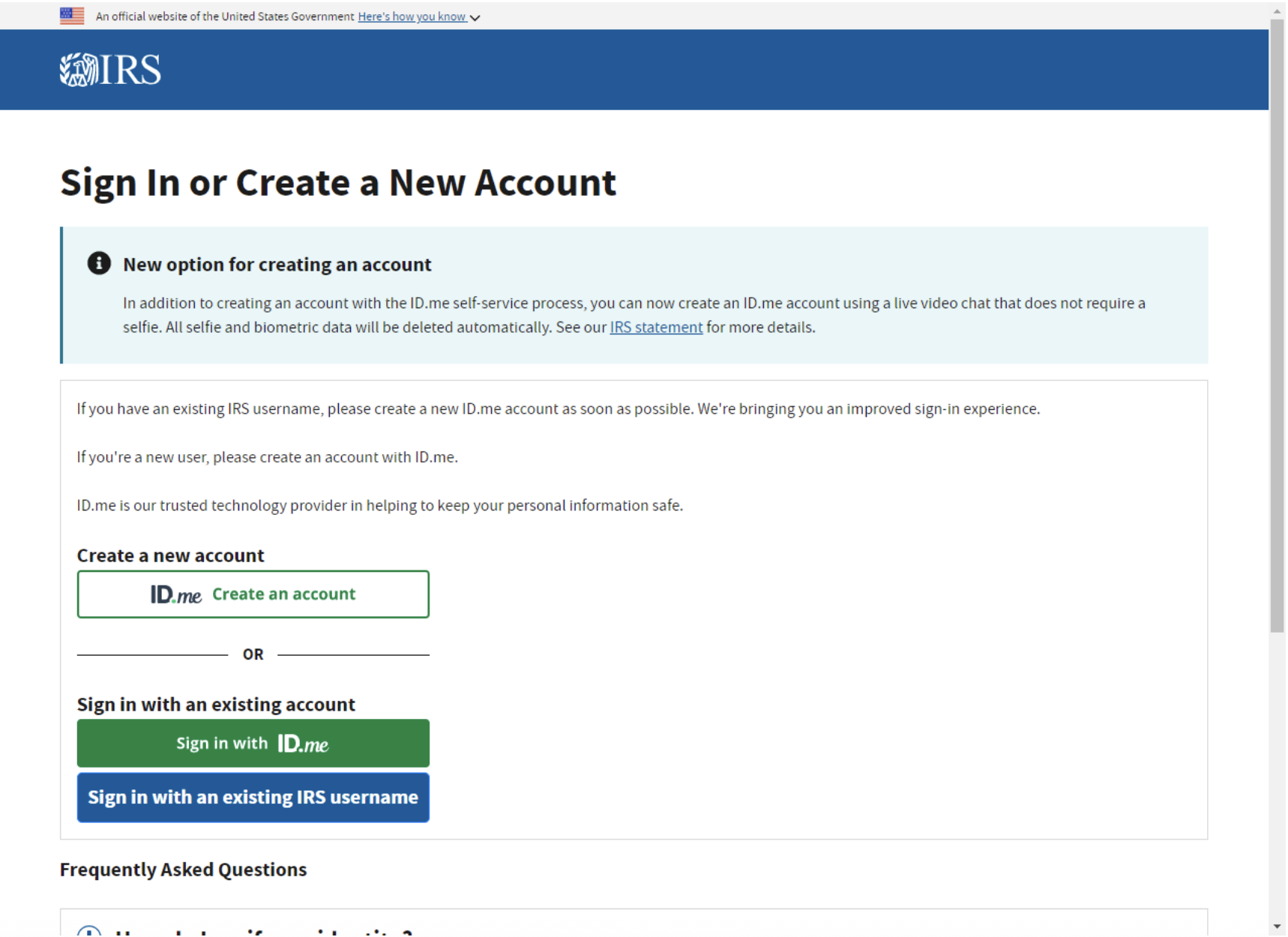
- For the type of transcript, be sure to select “Tax Return Transcript” option and select the Tax Year you need.
Telephone Request
- Available from the IRS by calling 1-800-908-9946.
- Tax filers must follow prompts to enter their Social Security Number, and the numbers in their street address. Be sure to use the address currently on file with the IRS (generally this will be the address that was listed on the latest tax return filed).
- Select “OPTION 2” to request an IRS Tax Return Transcript and then enter the tax year needed
- If successfully validated, tax filers can expect to receive a paper IRS Tax Return Transcript at the address that was used in their telephone request – with 5 to 10 days from the time of the request.
Verification of Non-Filing Form Request (Form 4506-T)
- The Verification of Non-Filing form can be requested by completing the IRS 4506-T Form.
- Fill out the form and check the option for ordering a “Verification of Non-filing” form (check box #7).
- Mail or fax the tax transcript request form to the appropriate address that applies to you on the second page of the request form.
Updated: August 12, 2026